A laptop may have a fast USB-C port, yet that does not guarantee video output, high-speed data, or charging through every hub. That distinction matters. USB-IF’s USB4 Version 2.0 announcement describes bandwidth of up to 80 Gbps, while USB Power Delivery 3.1 supports power levels up to 240 watts. These are technology limits, not promises that every Multiport Type-C USB Hub can deliver them. The laptop, hub, cable, and connected device must all support the relevant feature.
Choosing well starts with the devices you actually use. Check whether your USB-C port supports DisplayPort video, then match the hub’s HDMI or DisplayPort output to your monitor’s resolution and refresh rate. VESA’s DisplayPort 2.1 specification sets out higher-bandwidth capabilities, but a hub’s real performance depends on its implementation and host compatibility. Count the ports you need: perhaps a 4K monitor, an Ethernet connection, a mouse receiver, and a card reader. Small details matter.
A familiar mistake is buying by port count alone. More ports do not always mean faster transfers or steadier charging. Look for clearly stated data speeds, power-delivery limits, display support, and operating-system compatibility. Think about heat, too; a compact hub tucked beside a laptop can become warm during long transfers. No single model suits everyone. Even experienced buyers can overlook one port limitation. The sections ahead explain how to compare specifications and choose a hub that fits your setup, rather than relying on an impressive product photo.
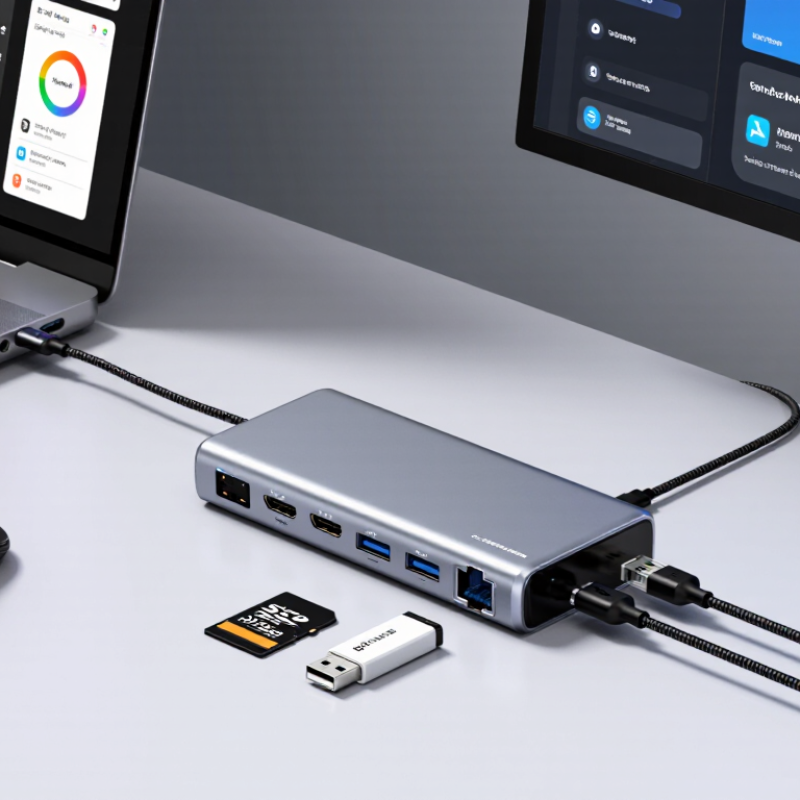
When choosing a multiport USB-C hub, start with the host device, not the connector’s shape. USB-C describes a physical connection; it does not guarantee video output, fast data transfer, or laptop charging. One port may charge a phone but send no video. Check the laptop or tablet manual for supported data rates, display modes, and charging input. This distinction is easy to overlook when ports look identical.
Industry specifications show why checking matters. The USB Implementers Forum announced USB4 Version 2.0 in 2022, with data rates up to 80 Gbps. USB Power Delivery 3.1 specifies power delivery up to 240 watts. These are specification limits, not promises about every host, hub, or cable. For a 4K monitor, verify the host’s video support and the hub’s resolution and refresh-rate limits. For a portable SSD, check which hub port carries the faster data rate. I’d also confirm whether charging pass-through reduces power available to connected devices.
Tips: List your actual devices, then match each need to a documented hub port. Check the host manual and cable specifications, too; a familiar connector alone tells you little. A little extra checking can prevent an expensive, frustrating mismatch.
| Device or Use Case | What to Check on the Host | What the Hub Must Support | Practical Selection Tip |
|---|---|---|---|
| Basic peripherals, such as a keyboard, mouse, or USB 2.0 device | Confirm the host has a USB-C data port. A USB-C connector alone does not specify the data speed or supported features. | A hub with compatible USB-A or USB-C data ports. USB 2.0 is sufficient for many low-bandwidth peripherals. | For simple input devices, prioritize the ports you need and a suitable cable rather than paying for higher bandwidth you will not use. |
| External SSD or other high-speed storage | Check the port’s supported USB data rate and whether the computer shares bandwidth across connected ports. | A hub and cable rated for the desired USB data rate. The connected drive must also support that rate. | The connection runs at the speed supported by the host, hub, cable, and device together; the highest-rated component does not guarantee that speed on its own. |
| External monitor over HDMI or DisplayPort | Verify that the USB-C port supports DisplayPort Alternate Mode, USB4 video, or another graphics method supported by the computer. | A video output compatible with the host’s video signal, plus support for the desired resolution and refresh rate. | Do not assume every USB-C port can output video. Check the computer’s specifications and the hub’s supported display modes before buying. |
| Two or more external monitors | Check the number of displays, resolutions, and refresh rates the host can drive simultaneously. Operating system and graphics hardware can affect support. | A hub with the required display outputs and a method compatible with the host, such as supported DisplayPort Multi-Stream Transport or a separate graphics solution. | Read the hub’s multi-display specifications carefully. A hub with multiple video sockets does not necessarily enable multiple independent displays on every computer. |
| Laptop charging while using the hub | Check whether the host accepts USB Power Delivery charging through its USB-C port and note its required charging power. | USB Power Delivery passthrough, a compatible power adapter, and sufficient power allocation for the host. | Some power is used by the hub and its connected devices, so the power available to the laptop may be lower than the adapter’s rated output. |
| Wired Ethernet connection | Confirm the operating system supports the hub’s Ethernet controller and that a suitable network connection is available. | An Ethernet port with the speed required by the network, such as 1 Gb/s, and compatible drivers or operating-system support where needed. | Actual throughput also depends on the network, cables, host performance, and other traffic sharing the connection. |
| Memory cards from cameras or other devices | Check whether the computer can access the required card format and whether the hub’s data connection is fast enough for the workflow. | The specific card-reader slot required, such as SD or microSD, and support for the card standard in use. | Card-slot shape and card standard are not interchangeable; verify both before choosing a hub. |
| USB-C devices connected through a hub | Identify whether the host’s USB-C port supports data, video, charging, or a combination of these functions. | A USB-C downstream port that explicitly supports the function and power level required by the device. | A USB-C-shaped downstream port may provide data only. Check the hub’s specifications instead of inferring capabilities from the connector shape. |
| USB4 or Thunderbolt devices | Confirm the host supports the relevant USB4 or Thunderbolt capability and the required data or display features. | A hub or dock compatible with the host’s protocol and performance requirements. | USB-C is the connector shape; USB4 and Thunderbolt are additional technologies. A USB-C port does not automatically support either one. |
No. It specifies a maximum link rate of 48 Gb/s, not a guaranteed display mode. Check the hub, host, monitor, and cable.
The host device. Check your laptop’s specifications, even when the hub lists the resolution you want.
Yes. DisplayPort Alt Mode may share bandwidth with USB data. High resolution, fast refresh rates, and HDR can add demands.
Look for output modes that state whether they apply to one screen or several. Don’t assume every listed mode works across multiple displays.
No. The 240 W figure is the protocol’s maximum, not a promise about a hub’s charging output. Check its stated pass-through rating.
If the hub uses 15 W, roughly 85 W may remain before conversion losses. Actual power varies by device and workload.
Check the adapter’s output, the hub’s input limit, and its host-charging wattage. The smallest limit matters.
Yes. A cable rated below your system’s needs can restrict power. I still find input and pass-through labels easy to confuse. That deserves a closer look.
Choosing the best Multiport Type-C USB Hub starts with identifying your devices and the capabilities of your host computer. USB-C describes a connector, not a guaranteed feature set, so check whether your host supports the data speeds, displays, and power functions you need. For file transfers, compare the hub’s specifications: USB 3.2 Gen 2 can reach 10 Gb/s, while USB4 can reach 40 Gb/s when supported by the connected devices.
Next, consider display output, power delivery, and port selection. HDMI 2.1 specifies bandwidth of up to 48 Gb/s, but the available display resolution and refresh rate depend on the host and hub. USB PD 3.1 can support up to 240 W, though actual charging also depends on the power supply, cable, and hub’s pass-through limit. Finally, choose a port mix that fits your workflow; UHS-II SD cards can reach 312 MB/s with compatible cards and readers.